Send your inspection payments straight into QuickBooks Online
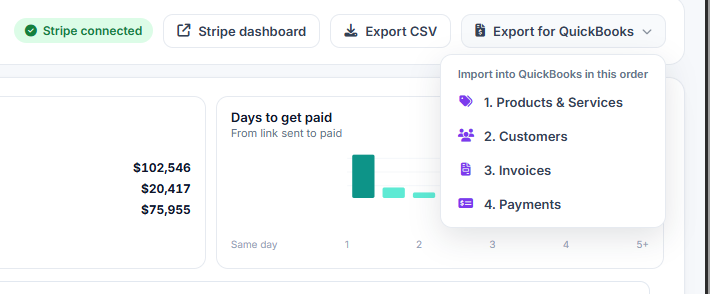
In Payment Center, one menu next to Export CSV downloads four QuickBooks-ready files, numbered in the order you import them. No connection, no OAuth, no monthly add-on fee. It's included.
 QuickBooks Online Ready
Bookkeeping Shouldn't Mean Retyping Every Payment
Your Stripe payments already have every detail. Your books shouldn't need it typed in twice.
Manual Double Entry
Copying invoices, tips, and card fees into QuickBooks by hand eats hours every month and invites typos your bookkeeper has to chase.
Refunds Get Lost
A refund issued in InspectorData doesn't automatically show up in your books, so revenue looks higher than it really is until someone catches it.
Integrations That Cost Extra
Most accounting integrations are a separate paid add-on with an OAuth connection to manage. That's one more login, one more bill.
How It Works
Open Payment Center, click "Export for QuickBooks" next to Export CSV, and download four files in the exact order QuickBooks Online expects them. Or click "Download all (ZIP)" and get all four plus a README in one file.
- 1. Products & Services - Your inspection services, tips, and card processing fee as QuickBooks items.
- 2. Customers - Every client with email, phone, and property address, split into street, city, state, and ZIP.
- 3. Invoices - One invoice per job with separate lines for the service, tip, and card fee.
- 4. Payments - A matching bank payment line for every invoice, refunds included as negative lines.
What's Inside Each File
Built and tested against QuickBooks Online's own "Import data" screens, so you import once and you're done.
1. Products & Services
Your inspection services, client tips, and the card processing fee, each set up as a line item QuickBooks recognizes.
2. Customers
Every client who paid, with email, phone, and the property address split into street, city, state, and ZIP fields.
3. Invoices
One invoice per paid job. Inspection services, the client's tip, and the card processing fee each land on their own line.
4. Payments
A bank payment line matching every invoice, uploaded through QuickBooks' bank-transaction import (Date, Description, Amount). Refunds appear as negative lines.
Why Inspectors Care
Every card payment collected through InspectorData is already a Stripe transaction with all the detail your bookkeeper needs. The QuickBooks export just puts it in the shape QuickBooks Online expects, so nothing gets retyped and nothing gets missed.
- Bookkeeper-Ready in Minutes - Four files, correctly formatted, ready to hand off or import yourself.
- No Double Entry - Pull the numbers straight from Payment Center instead of retyping every invoice.
- Refunds and Tips Accounted For - Refunds post as negative payments, tips get their own invoice line.
- Your Quote Numbers Stay Your Quote Numbers - Turn on Custom transaction numbers in QuickBooks and your QT- quote numbers carry over as the invoice number.
Built by InterNACHI Certified Inspectors
We know the end-of-month scramble to get invoices into your books. We built an export that hands your bookkeeper exactly what QuickBooks Online wants, based on real inspection business needs, not generic accounting software.
Get Your Books Caught Up Today
One click, four files, straight into QuickBooks Online. Free 30-day trial.
Frequently Asked Questions
Do I need QuickBooks Desktop?
No. The export files are built for QuickBooks Online's own import screens, not QuickBooks Desktop.